Retouch Skin AI
Smooth, brighten,
still you.
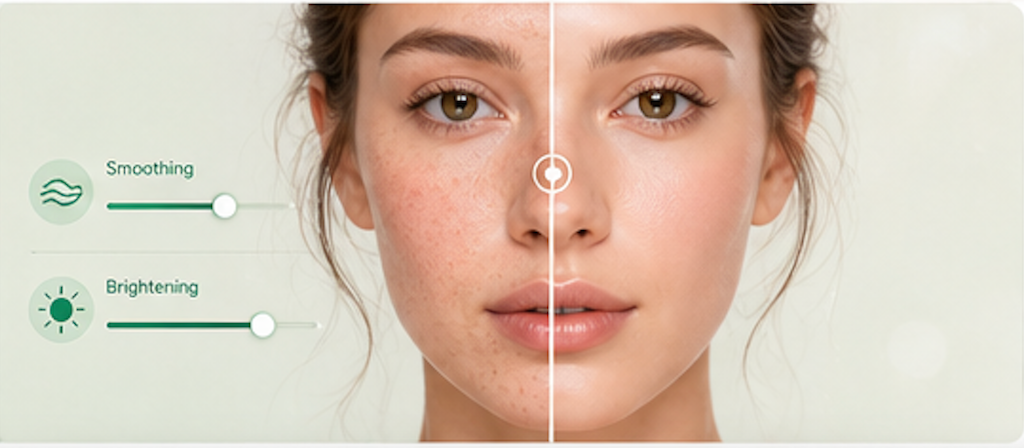
Gently smooth texture and even out skin tone with adjustable intensity. No face reshaping—just a clean, natural polish.
How it works
Four steps to
polished skin.
Adjust, upload, compare. No sign-up required to try.
- 01
Adjust the sliders
Set skin smoothing and brightening to your desired intensity. Start with the defaults for a natural look—push higher for a more polished finish.
- 02
Upload a clear portrait
Use a front-facing photo with good, even lighting. JPEG, PNG, or BMP. The clearer the face, the better the result.
- 03
AI processes your photo
The RetouchSkin model smooths texture, evens skin tone, and gently brightens—your face shape and features remain exactly as they are.
- 04
Compare side by side and download
Drag the before/after slider to see the difference. Download the retouched version or go back and try different settings.
FAQ
Common questions.
Will I still look like myself?
Yes. Smoothing and brightening are subtle and adjustable. Keep sliders low for minimal enhancement or push higher for a more polished look.
How is this different from Face Beauty?
Face Beauty includes sharpness control and focuses on overall portrait enhancement. Retouch Skin specifically targets skin texture, blemishes, and tone evenness.
What skin types does this work for?
The AI works across all skin tones and types. For best results, use good front-facing lighting without harsh shadows.
Can I remove specific blemishes only?
The tool applies overall skin enhancement. For precise spot editing, use a dedicated retouching app with brush tools.
What file formats are supported?
JPEG, PNG, and BMP. Maximum file size is roughly 4 MB for API processing.
Ready when you are