Profile photos and avatars
Use a light filter pass when your face needs to read clearly at small sizes on social profiles, resumes, community pages, or creator bios.
AI Generator / Beauty Filter
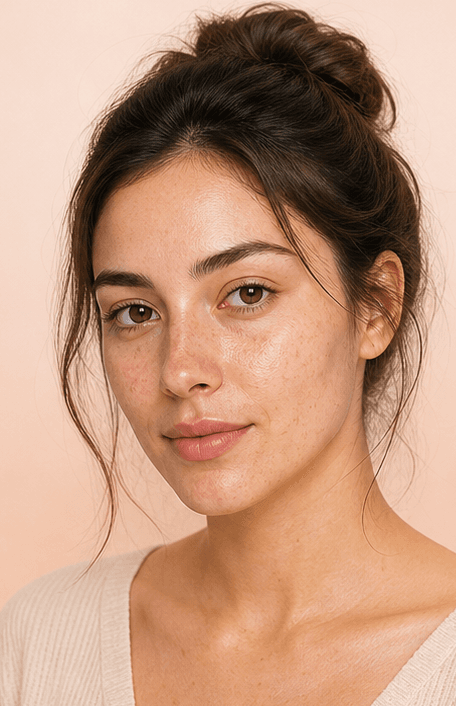
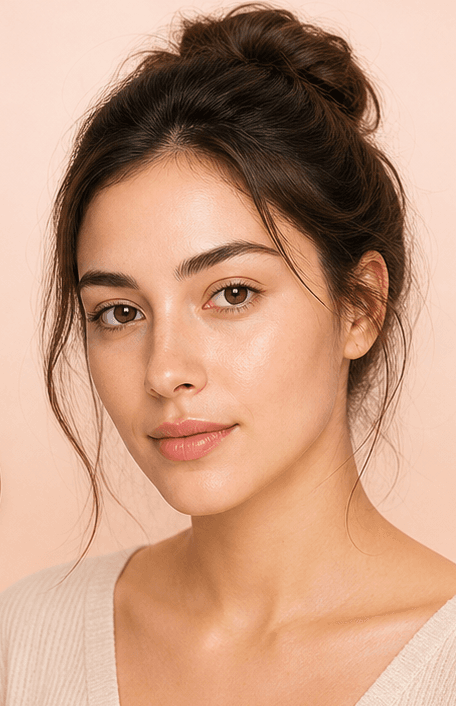
Upload a portrait, adjust smoothing, tone, and sharpness, then use the before and after slider to keep the final beauty filter natural.
How it works
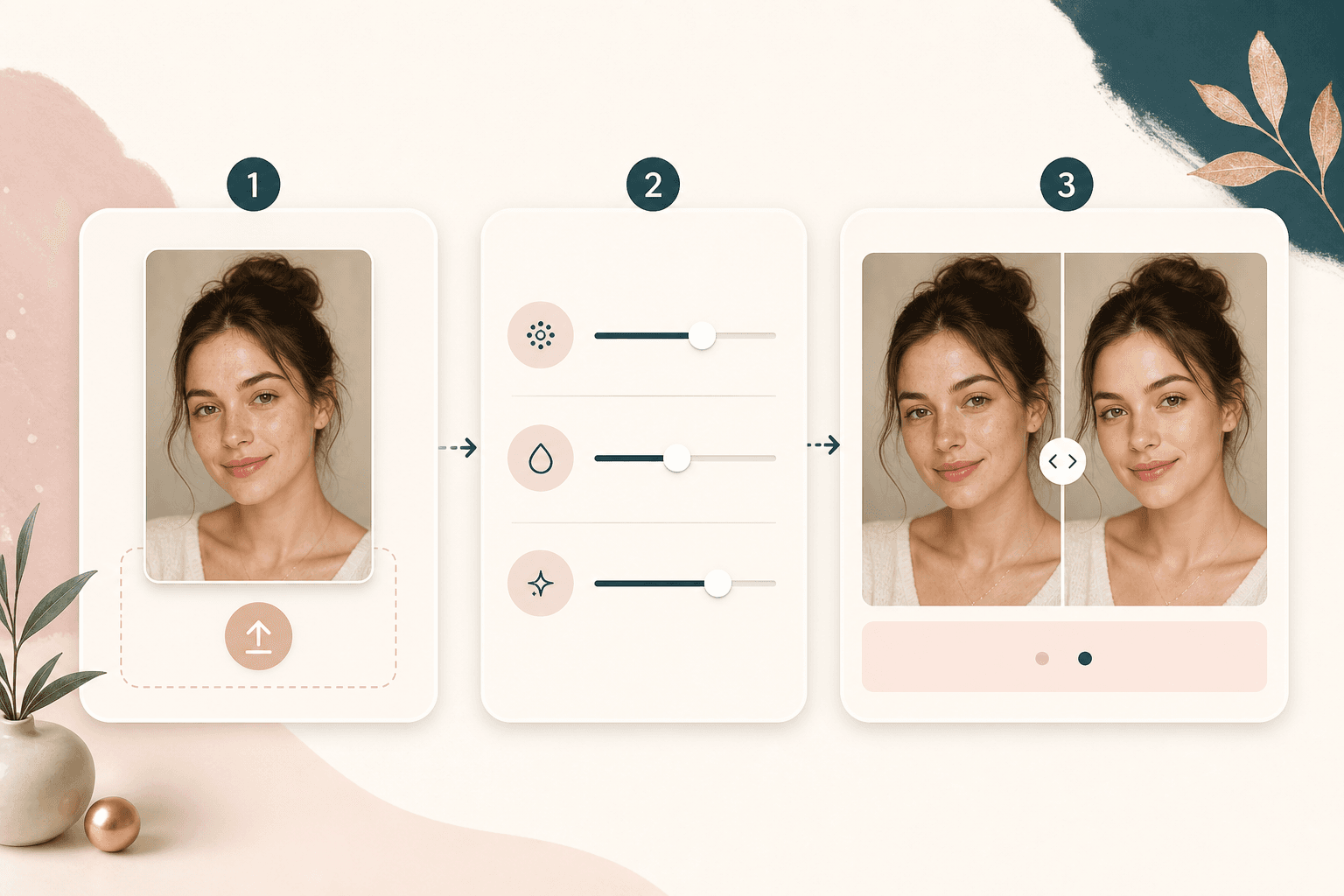
The workflow is short: upload one portrait, choose the filter strength, and review the result before saving it.
Choose a front facing photo where your face is visible and evenly lit. The uploader checks common image formats and compresses large files when needed.
Set Sharpness, Smoothness, and Whitening from 0 to 1. Keep lower values for a softer beauty filter, or raise one control at a time.
After generation, use the result slider to compare the original and filtered portrait. Download the original or the beautified version from the result page.
Use cases
Use a light beauty filter when the photo is good already, but skin tone, texture, or clarity needs a cleaner finish.
Use a light filter pass when your face needs to read clearly at small sizes on social profiles, resumes, community pages, or creator bios.
Smooth lighting, soften minor texture, and add a little sharpness before posting. The before and after slider helps you avoid going too far.
A controlled beauty filter can make a portrait feel cleaner while keeping the same person, expression, and lighting context visible.
Try a balanced preset when you need a polished portrait quickly, then adjust the sliders if the thumbnail needs more clarity or less smoothing.
Why choose BeautyLove
BeautyLove keeps the tool narrow and readable: one portrait, three controls, one result, and a direct comparison.
Three sliders let you choose how much sharpness, smoothing, and tone brightening to apply before the photo is processed.
The result page keeps the original close by, so you can judge whether the filter still looks like you.
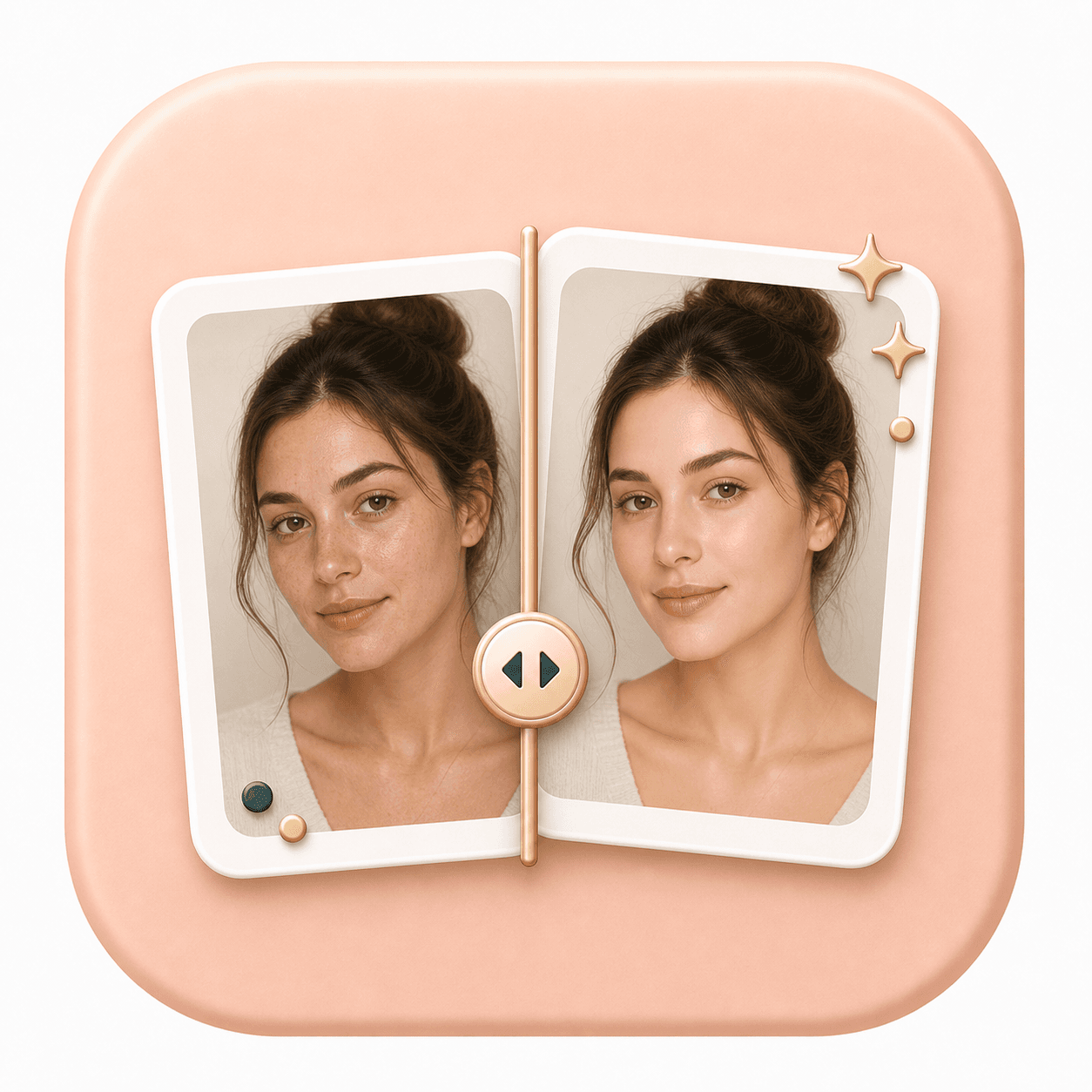
BeautyLove includes a comparison slider, which is useful when small changes in skin tone or clarity are hard to spot.
AI Beauty Filter is a generator tool. A successful run uses 20 credits, while failed requests should not consume credits.
Key features
Each feature is designed around the real controls in this tool, with no extra editor to learn.
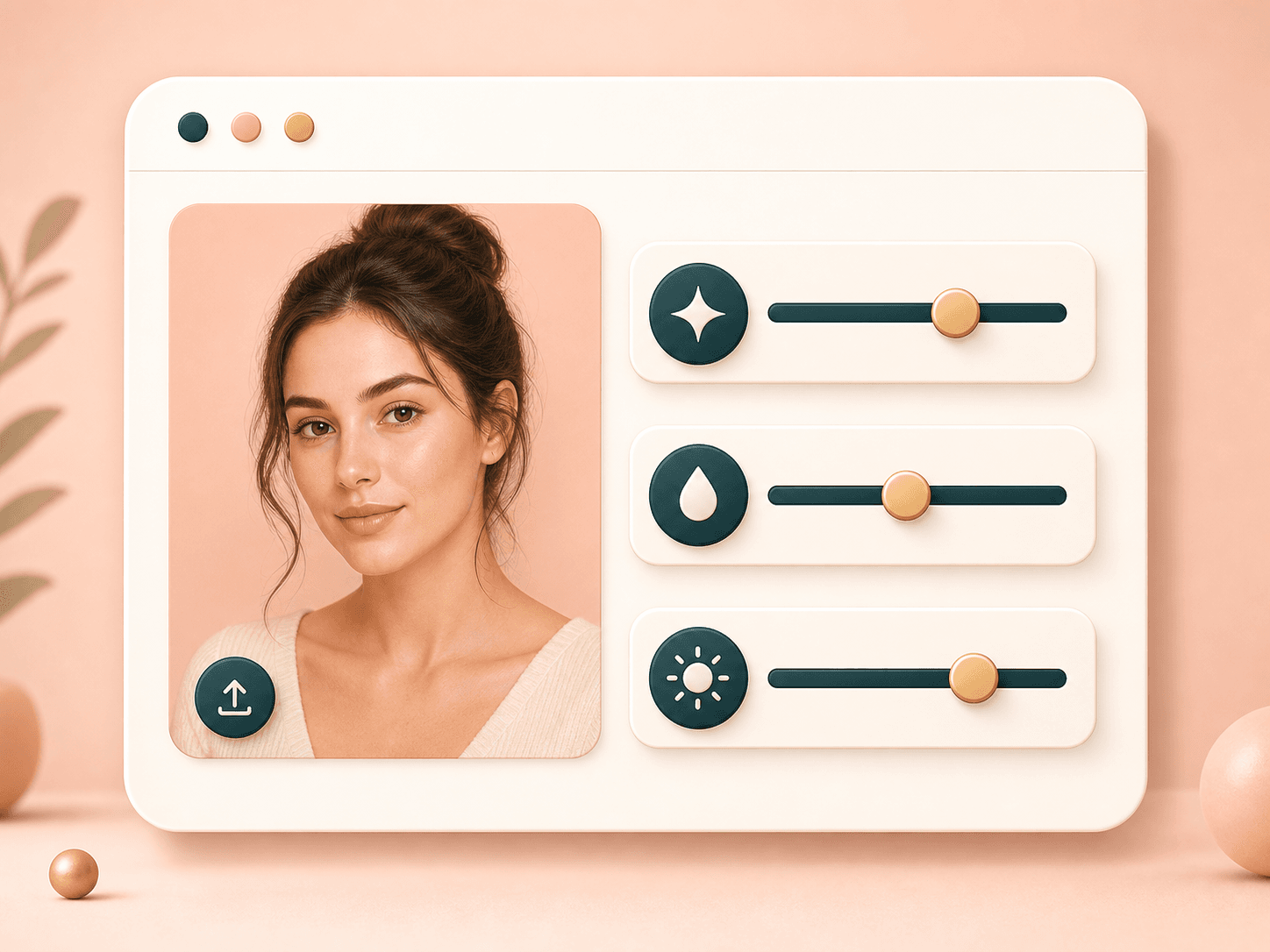
The tool gives you direct control over the three FaceBeauty parameters. Sharpness adds clarity, Smoothness softens visible texture, and Whitening brightens the overall skin tone. Start with the default preset, then change one slider at a time if you want a more subtle or more polished portrait.
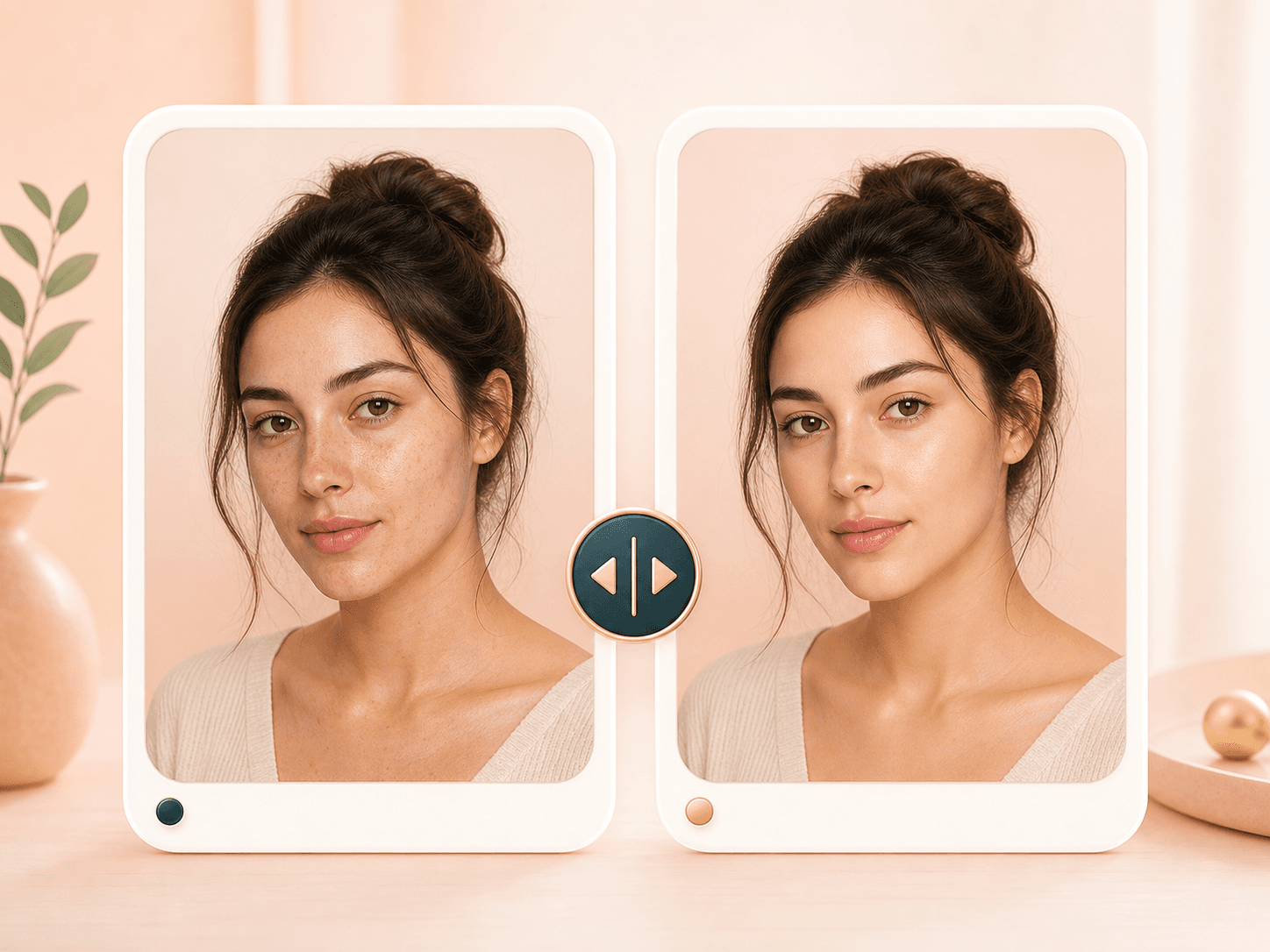
Many people search for an AI beauty filter because they want a cleaner photo without a heavy filter look. BeautyLove helps by keeping the workflow focused on portrait polish, then letting you compare the result against the original before you download.
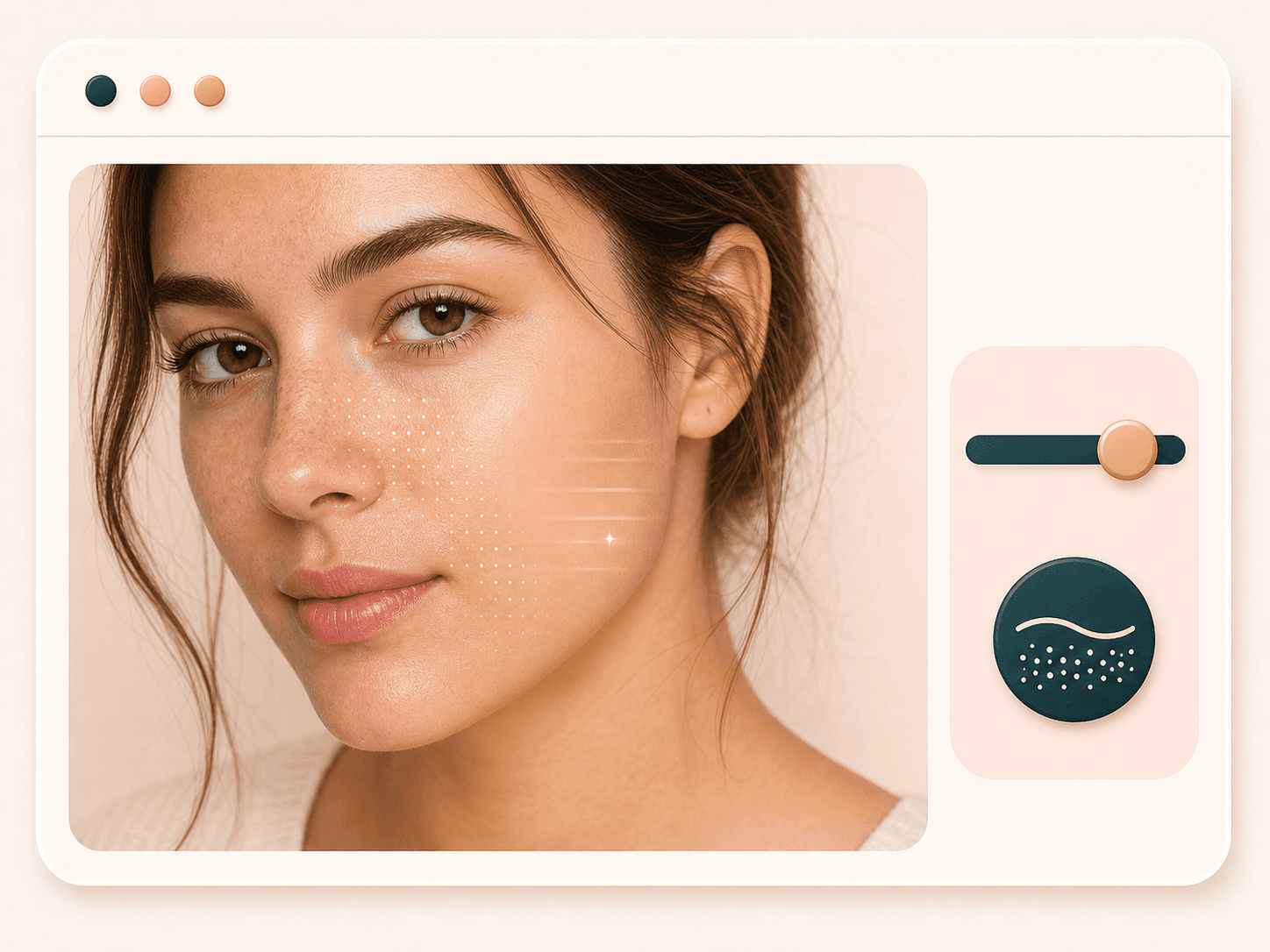
Smoothness can soften small uneven areas and reduce harsh texture in a selfie or headshot. Use a modest setting when you want skin to look calmer while still keeping edges, facial structure, and the basic feel of the original photo.
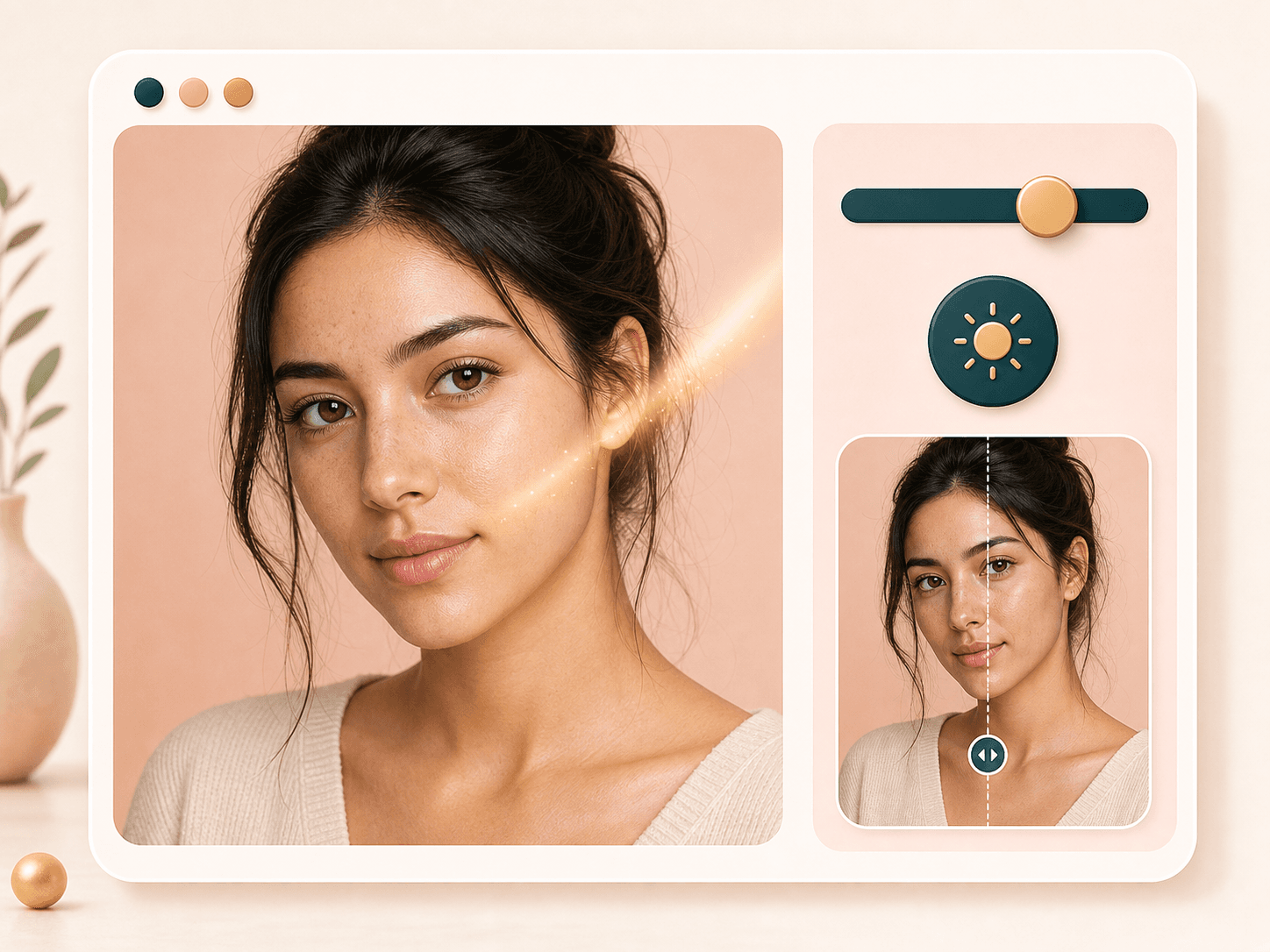
The Whitening control lifts the portrait tone when the source image feels dull or shadowed. It is best used as a brightness and tone control, not as a way to change who the person is. Lower values usually look more natural.
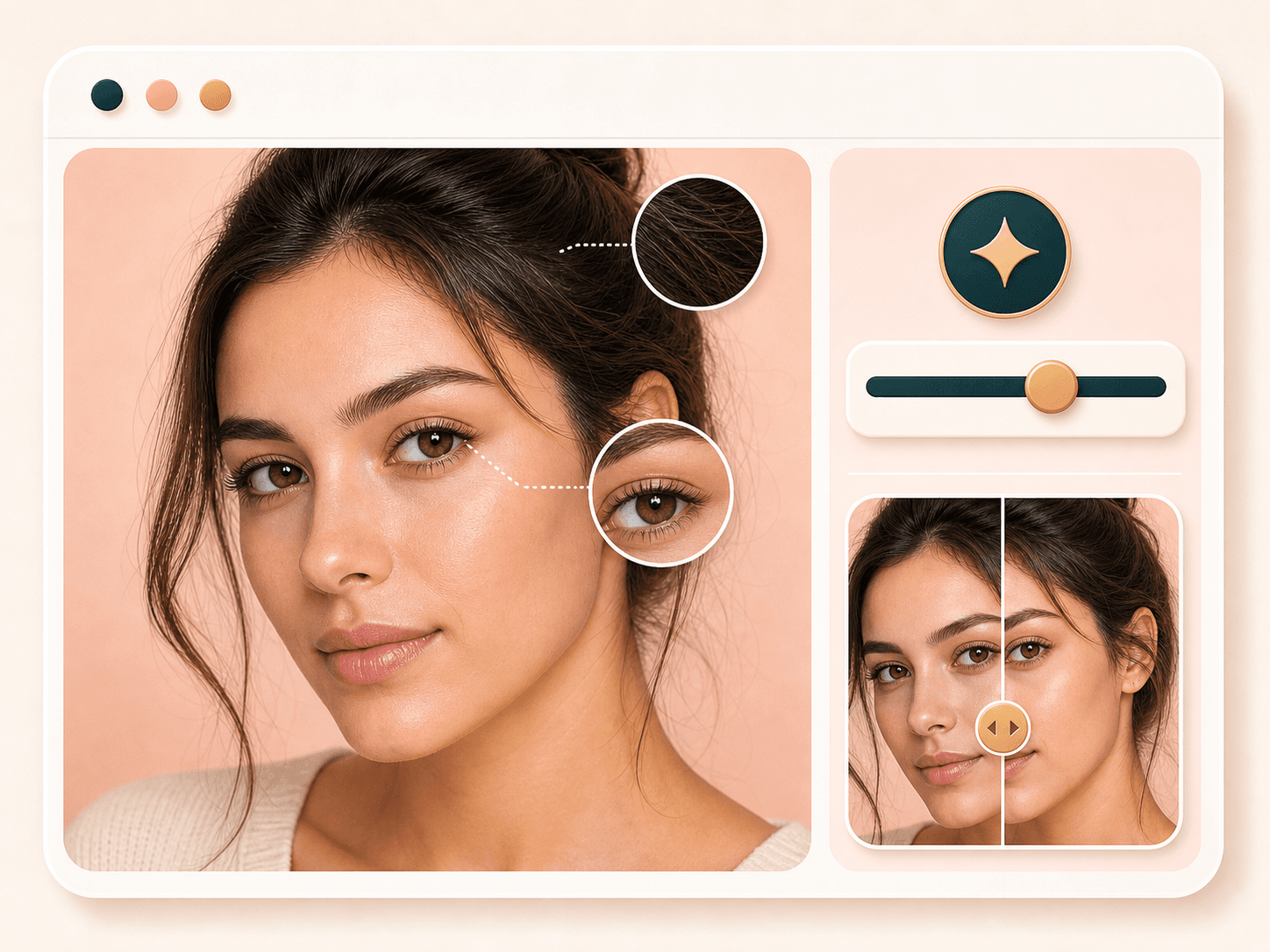
Sharpness helps bring back definition after smoothing and brightening. It can make eyes, brows, hair, and facial edges read more clearly in profile photos. If the result starts to look too crisp, lower the value and run again.
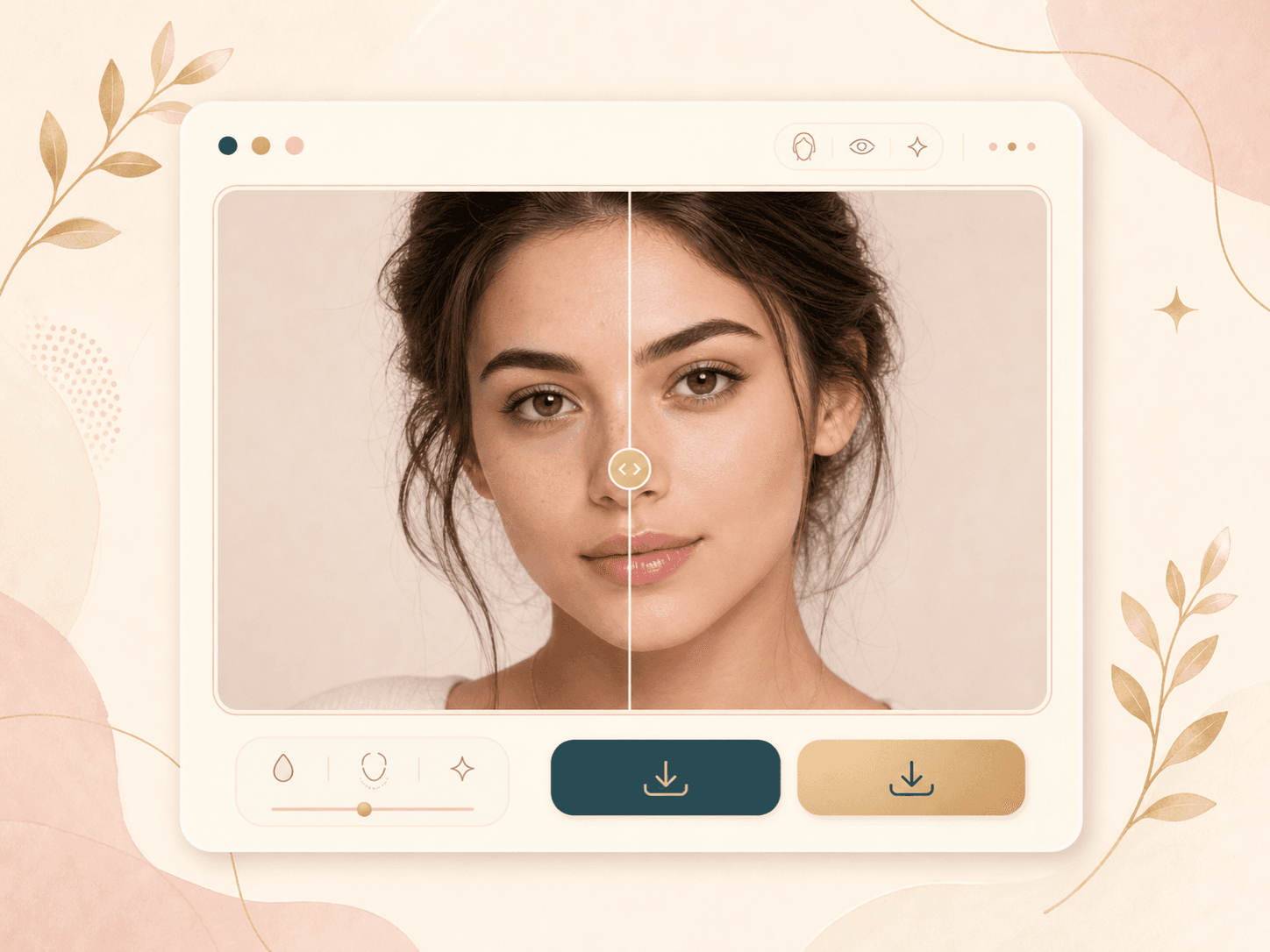
The result page shows a draggable before and after slider, with the original on one side and the beautified result on the other. You can download either version, which makes it easier to keep the edit that fits your use case.
Comparison table
Searchers often compare beauty filters, photo retouchers, and manual editors. The right choice depends on how much control you need.
| Option | Control | Result focus | Workflow | Best for |
|---|---|---|---|---|
| BeautyLove AI Beauty Filter | Three strength sliders | Portrait smoothing, tone brightening, and sharpness | Upload, generate, compare, download | Users who want a controlled online beauty filter |
| One tap beauty filter apps | Usually preset based | Fast beauty effect, style varies by app | Apply a preset and export | Quick casual edits when control matters less |
| Manual photo editors | High control with more steps | Depends on editing skill and time | Brushes, masks, layers, and manual export | Detailed retouching sessions |
| Makeup filter tools | Color and style presets | Virtual makeup, lips, eyes, brows, and blush | Pick a look and preview | Trying visible makeup styles |
| Skin retouch tools | Often focused on blemishes or texture | Skin cleanup more than full portrait polish | Upload and run a retouch pass | Specific skin texture fixes |
Privacy and photo use
Your image is sent to the selected AI service to create the filtered result. This tool is not processed only on your device.
Result data and a thumbnail may be kept in your browser storage so the result page can show your latest edit.
Upload photos you own or have permission to use. Avoid using someone else's portrait without consent.
Use the comparison slider to keep the result realistic, especially for dating, work, creator, or identity linked photos.
FAQ
Credits, file rules, slider controls, natural results, privacy, and what to do if generation fails.
Ready when you are
Upload a clear portrait, keep the first pass subtle, then compare the original and filtered result before you save it.
Loved by 5M+ BeautyLove users for hair, makeup, color, and portrait decisions.