Profile photos and avatars
Use a light retouch pass when a clear portrait needs calmer texture or tone before it appears at small sizes.
AI Generator / Skin Retouch
Smooth visible texture, soften uneven tone, and brighten portraits with adjustable AI skin retouching and a before and after result check.
Output preview
Natural skin retouch example
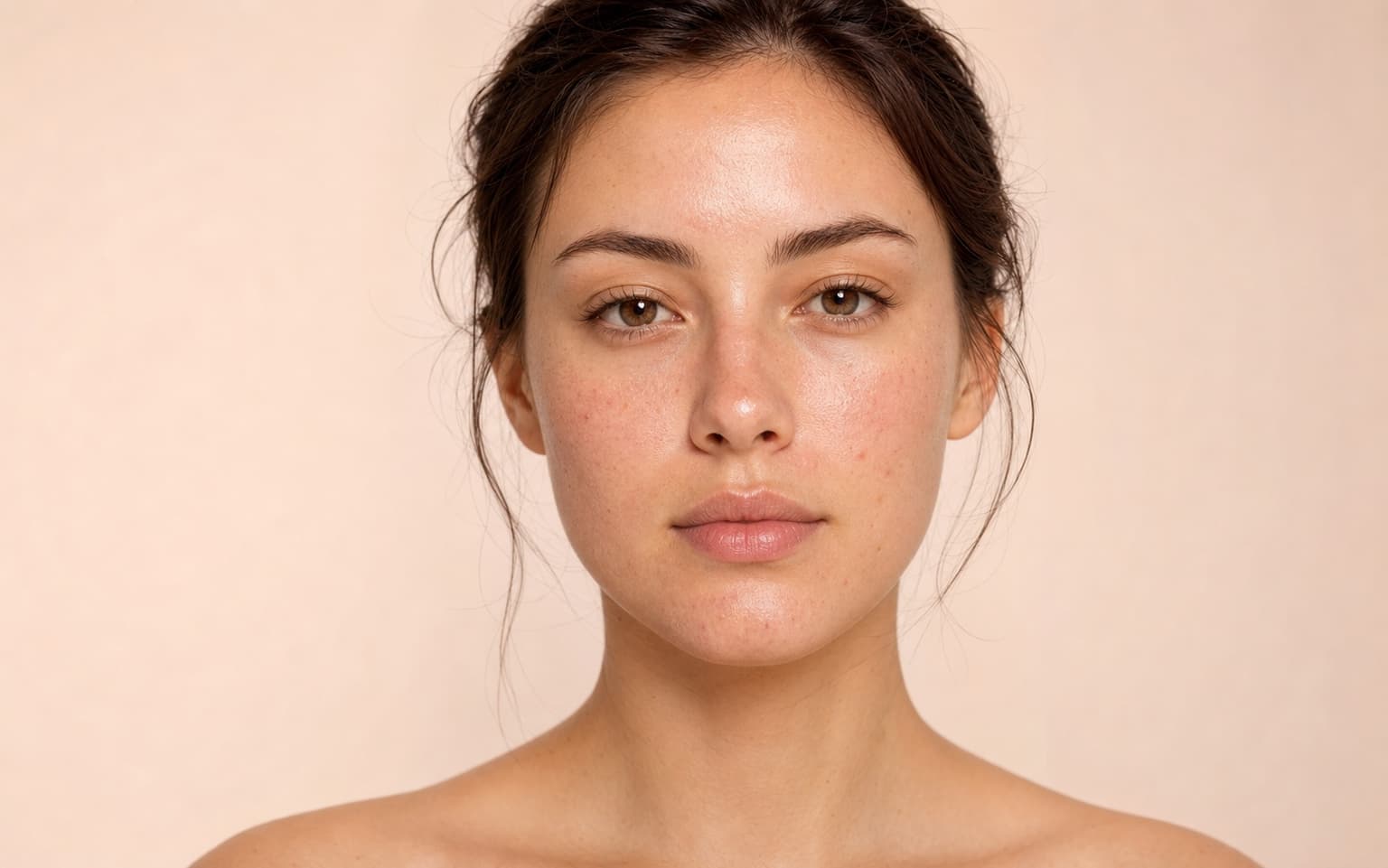
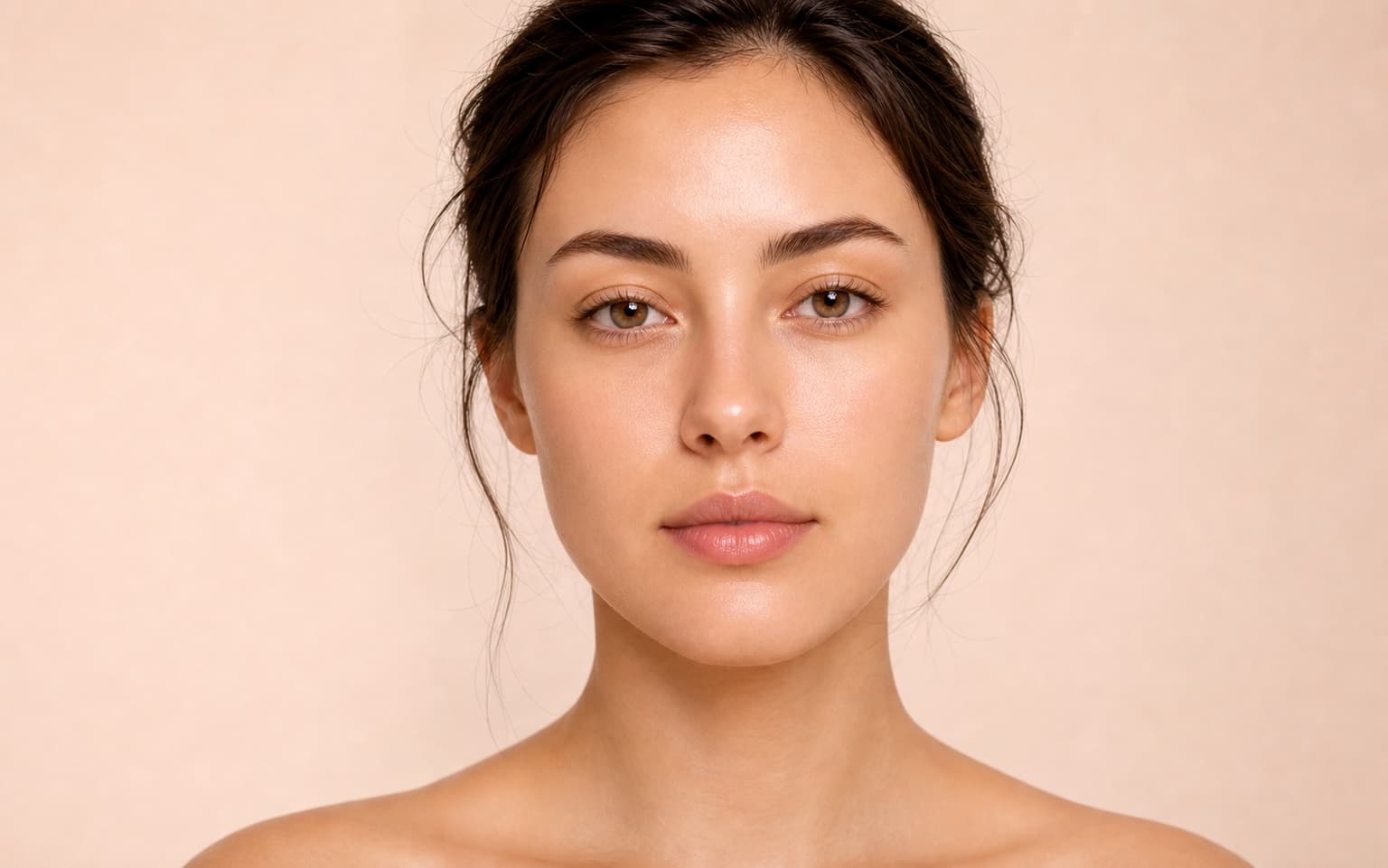
Output preview. Your actual result depends on the uploaded photo and selected settings.
Retouch parameters
20 credits
charged after success
No charge
when processing fails
Processing
Usually 15–45 seconds
Private result
Workspace: 30 days; browser fallback until cleared
How it works
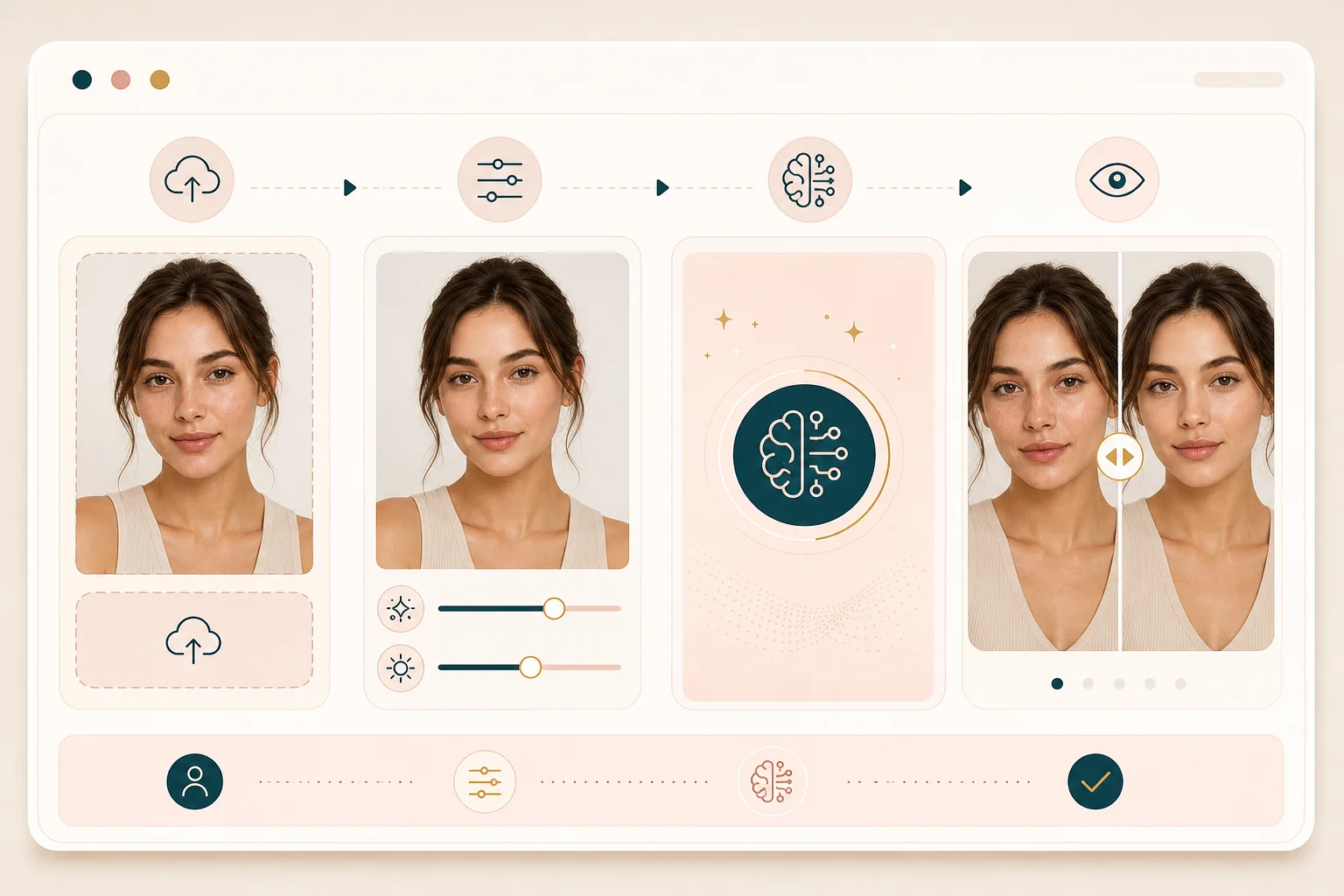
Upload one portrait, choose the retouch strength, and review the result before saving the final image.
Choose a front facing photo with a visible face and even light. The uploader accepts common image files and compresses large uploads when needed.
Use the smoothing and brightening sliders before you run the tool. Start with the default settings when you want a natural first pass.
BeautyLove sends the portrait to the retouching service, applies the selected values, and returns a softened result with the original photo kept for review.
Use the before and after slider on the result page to check texture, tone, and likeness before downloading the retouched portrait.
Use cases
A light retouch works best when the photo is already good, but texture, tone, or lighting feels a little harsh.
Use a light retouch pass when a clear portrait needs calmer texture or tone before it appears at small sizes.
Soften uneven texture and brighten dull lighting before sharing, while keeping the same face, expression, and overall photo feel.
Clean up a portrait for a thumbnail, media kit, or creator profile when you need a polished but believable face crop.
Run a modest edit on portraits from parties, work events, or casual shoots when the lighting makes skin texture look harsher than expected.
Why choose BeautyLove
BeautyLove keeps the tool narrow and readable: two controls, one portrait, one result, and a direct comparison.
Two sliders let you choose how much smoothing and brightening to apply before processing the portrait.
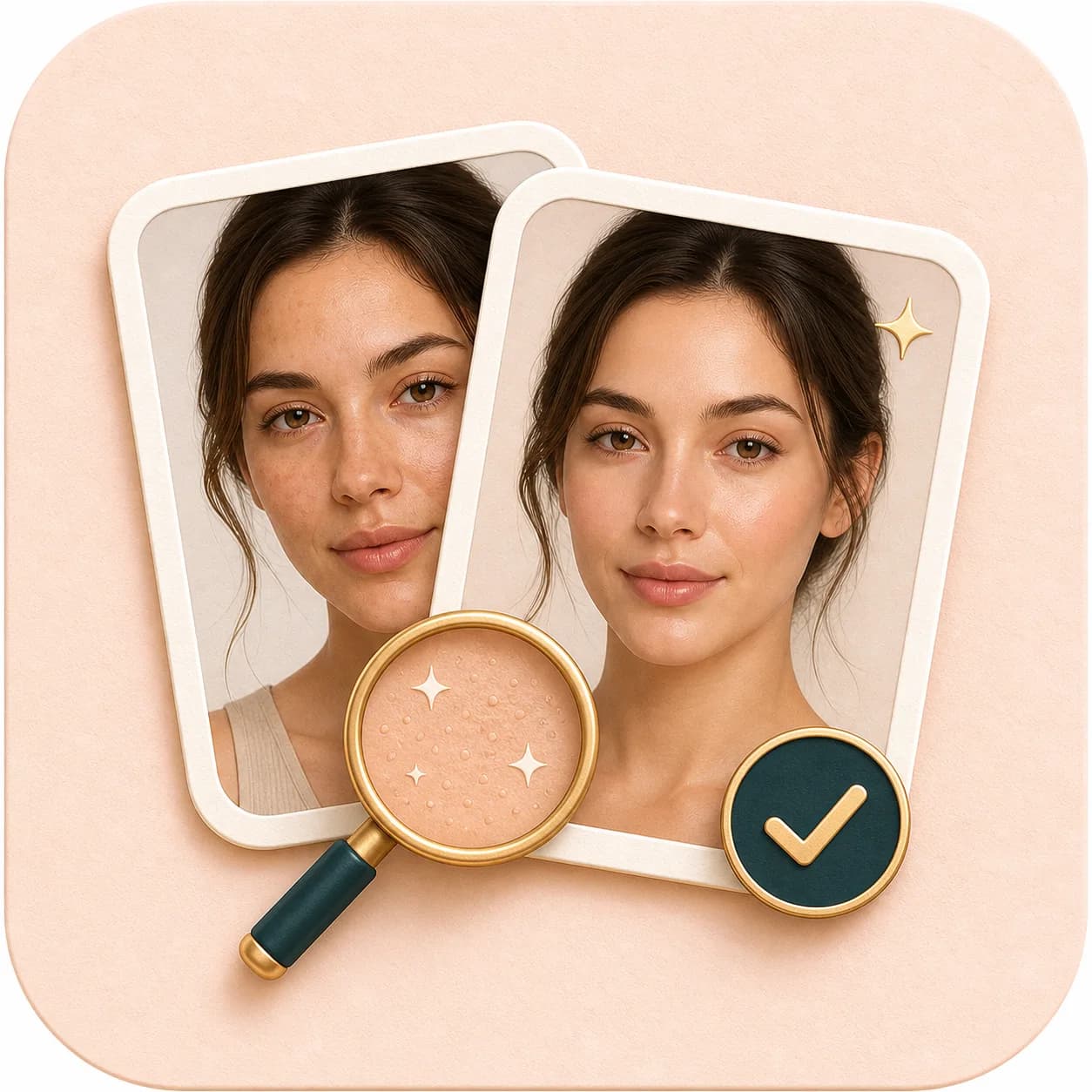
The workflow is designed around checking the final face against the original, so you can avoid an over edited look.
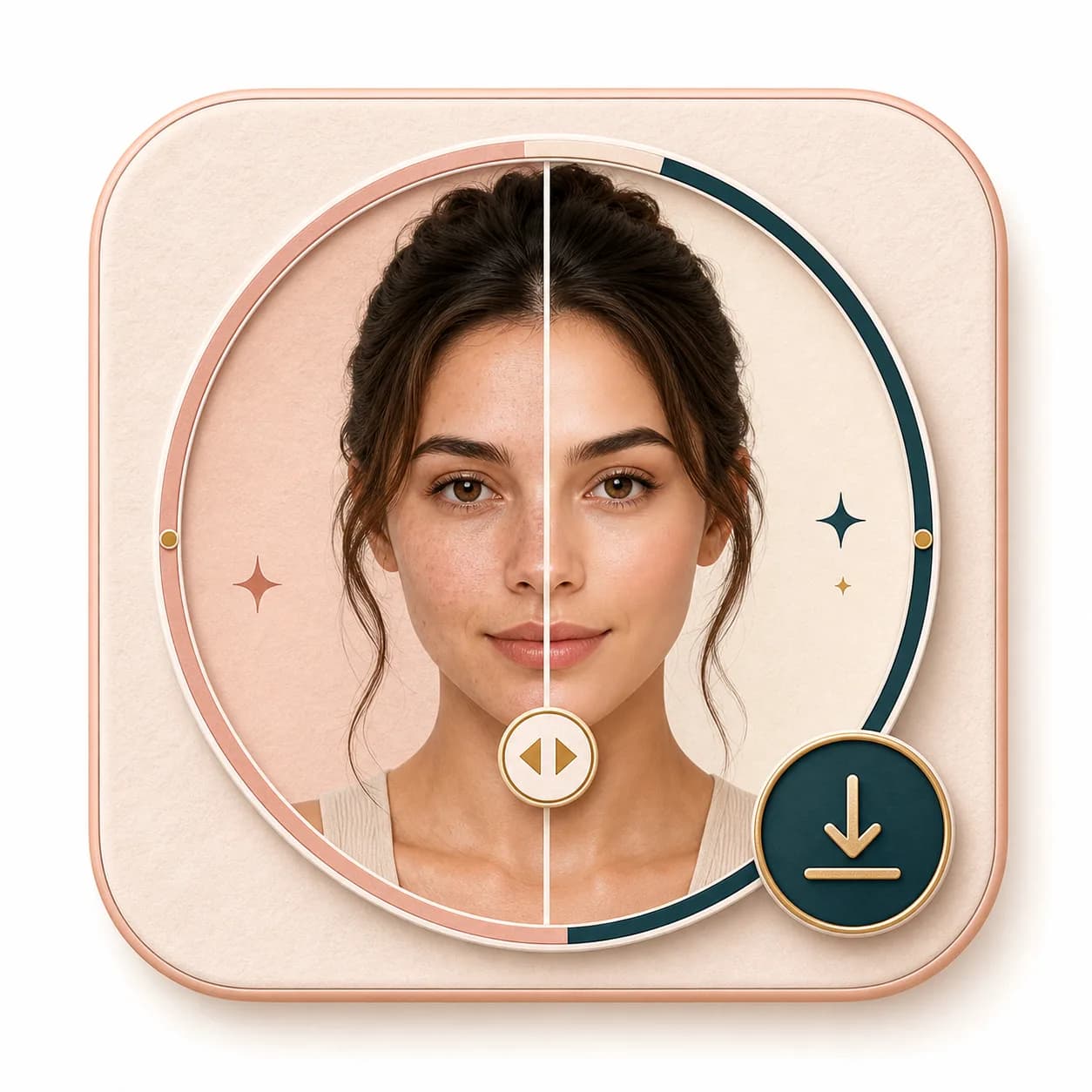
The result page gives you a draggable comparison slider before you decide which version to keep.
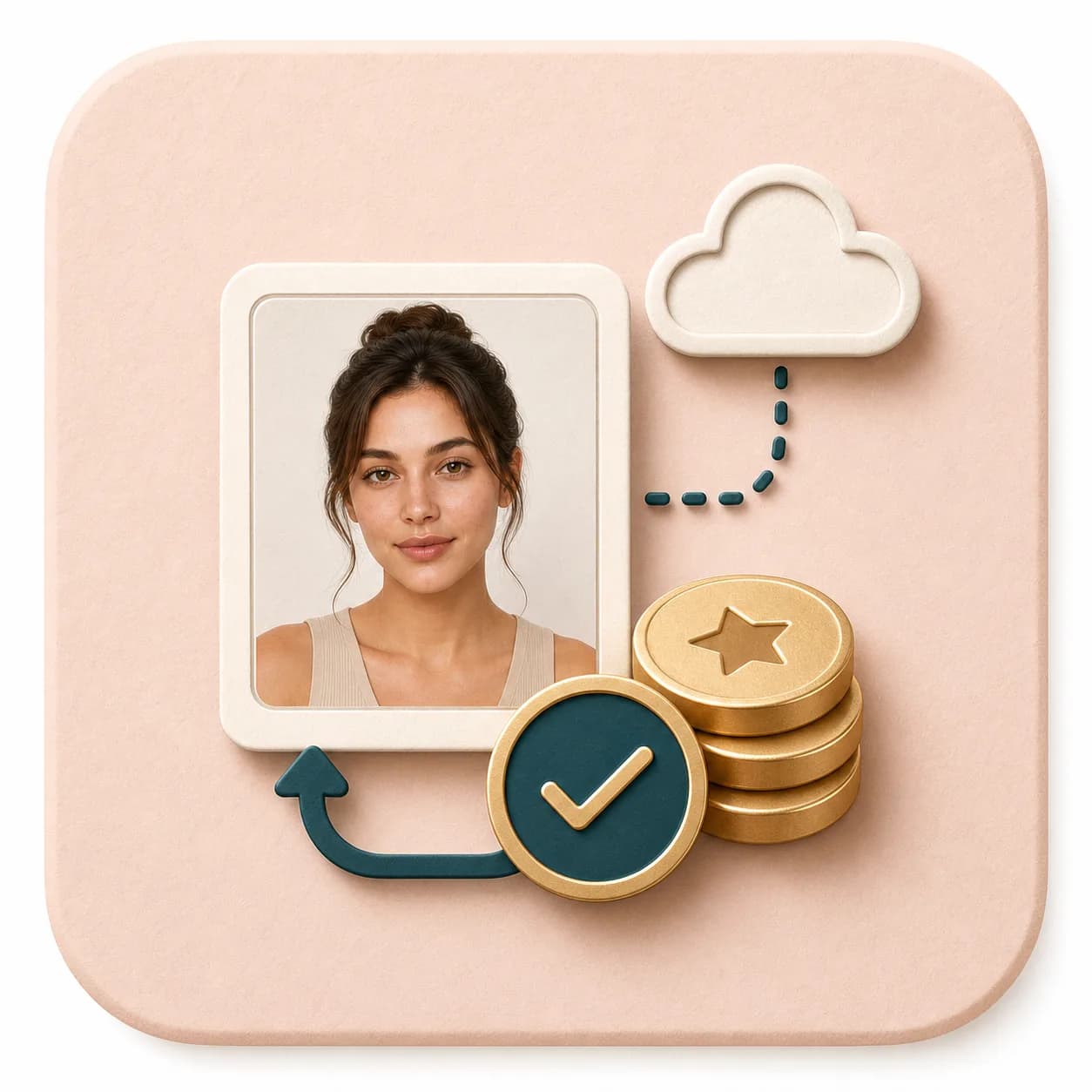
AI Skin Retouching is a generator tool. A successful run uses 20 credits, while failed requests should not use credits.
Key features
Each feature supports a simple portrait retouch workflow, from upload quality to the final comparison.
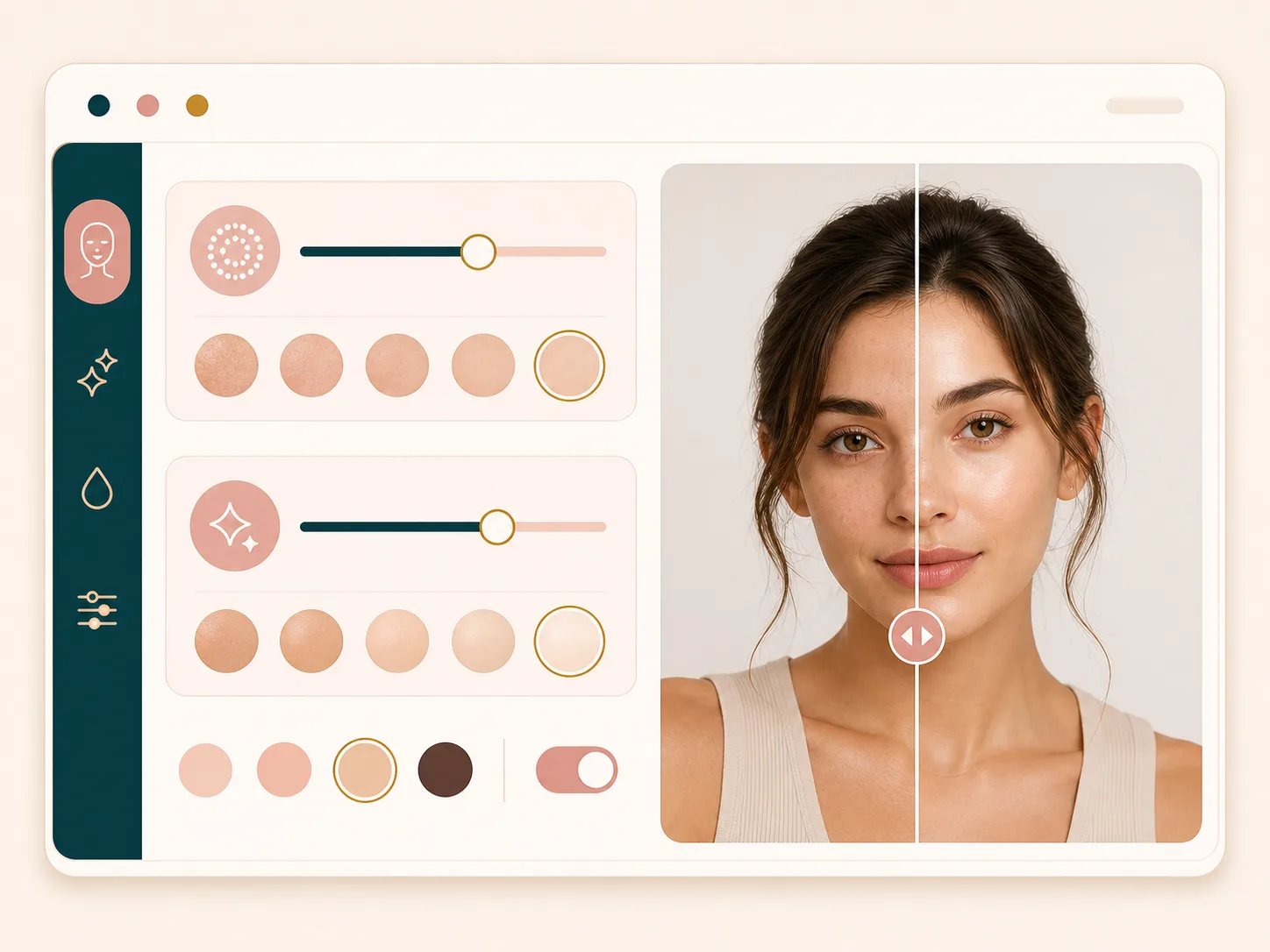
Control the edit before the image is processed. Retouch strength softens visible skin texture, while brightening lifts the portrait tone. You can keep both values low for a subtle social photo or raise one value at a time when the source image needs more polish.
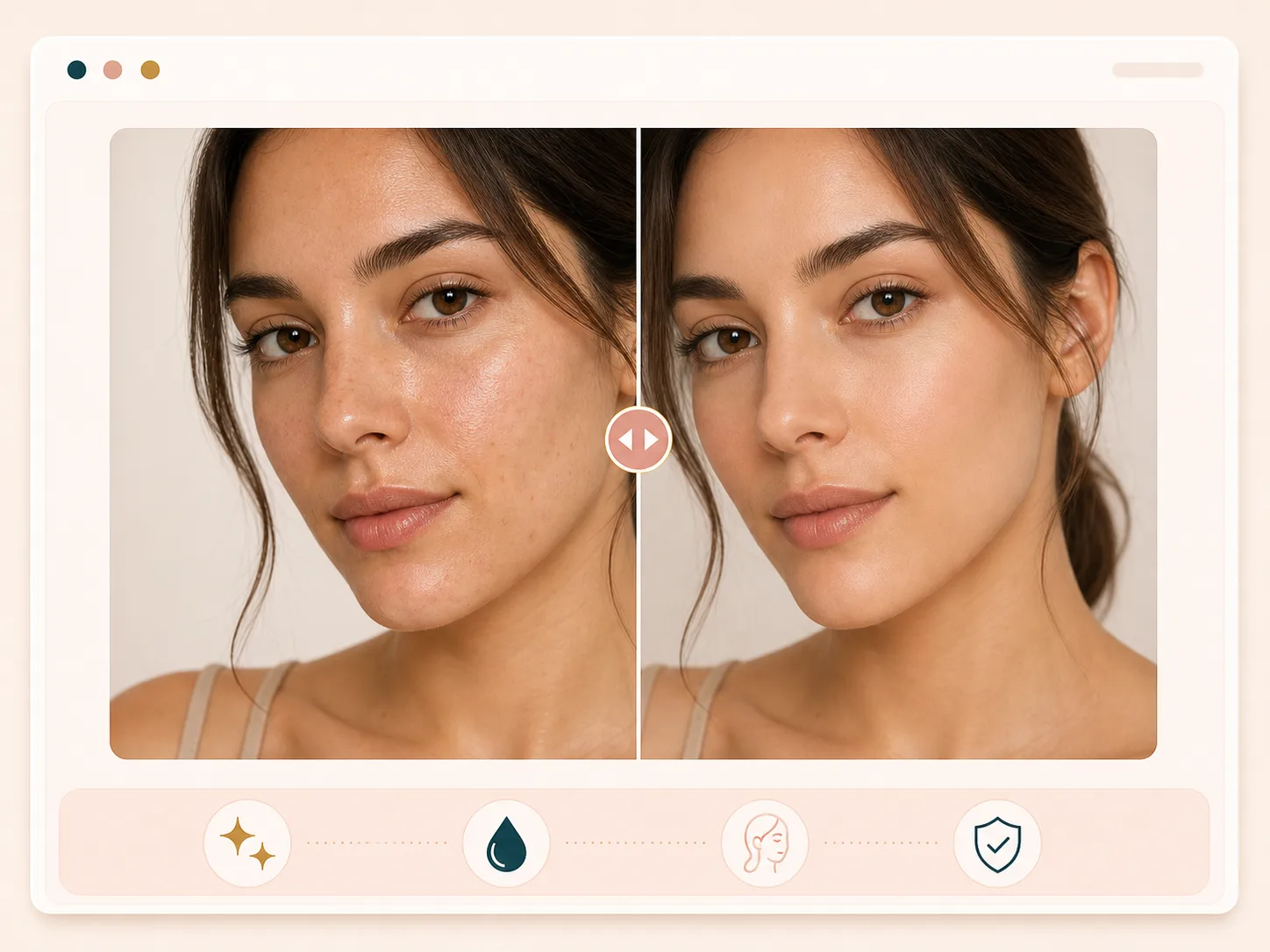
Skin retouching works best when it softens distractions without changing the person. BeautyLove keeps the workflow focused on smoothing and tone, not reshaping the face. Use the result slider to check eyes, brows, lips, texture, and facial structure before you download.
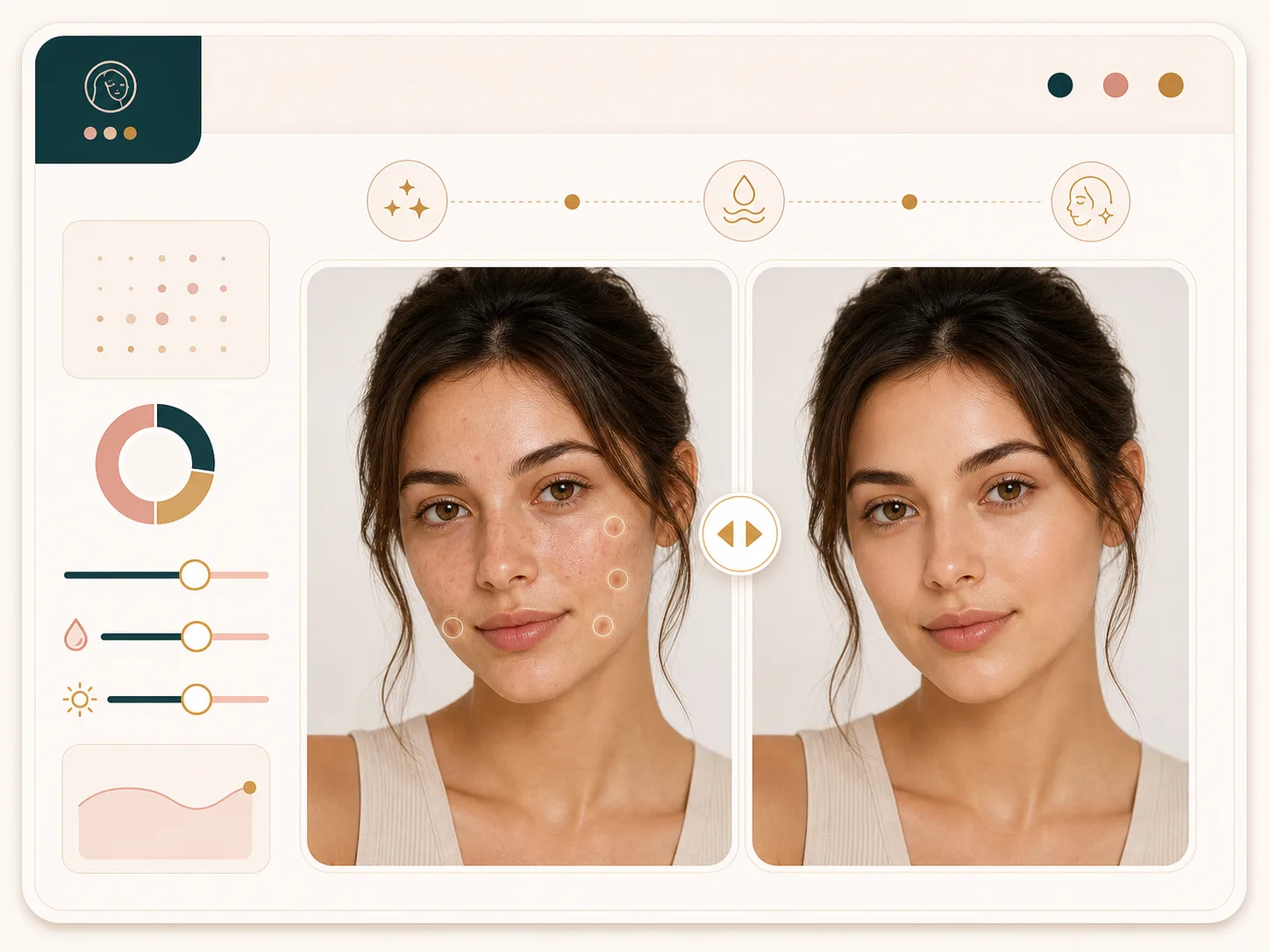
The tool can help make visible blotchiness, dull areas, and small uneven patches read more calmly in a portrait. It is an overall retouch pass, not a manual brush editor, so it is best for quick cleanup rather than precise local correction.
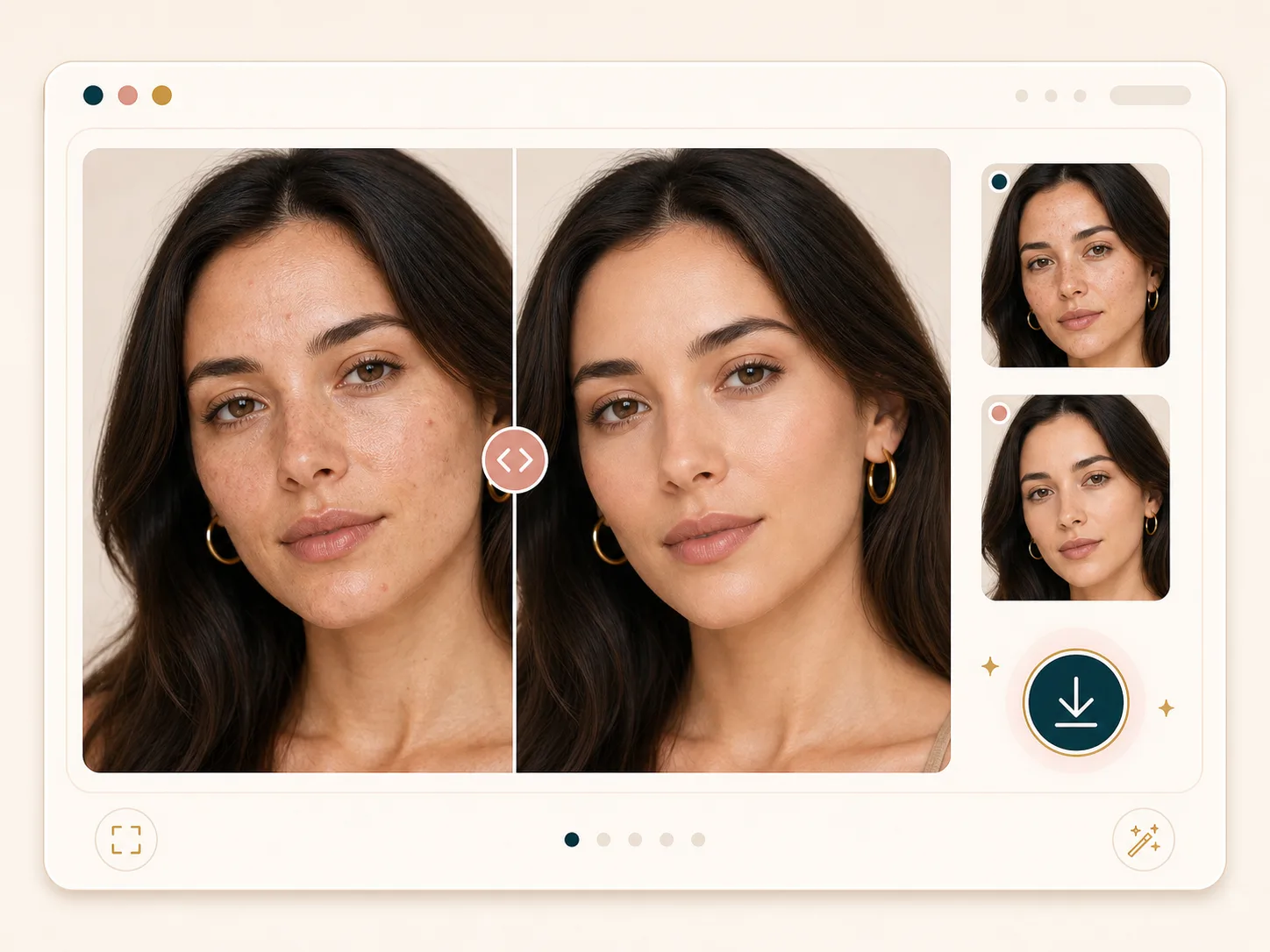
After processing, the result page shows the original and retouched portrait in one comparison view. Drag the handle to inspect the change, then download the retouched version when it matches the level of polish you wanted.
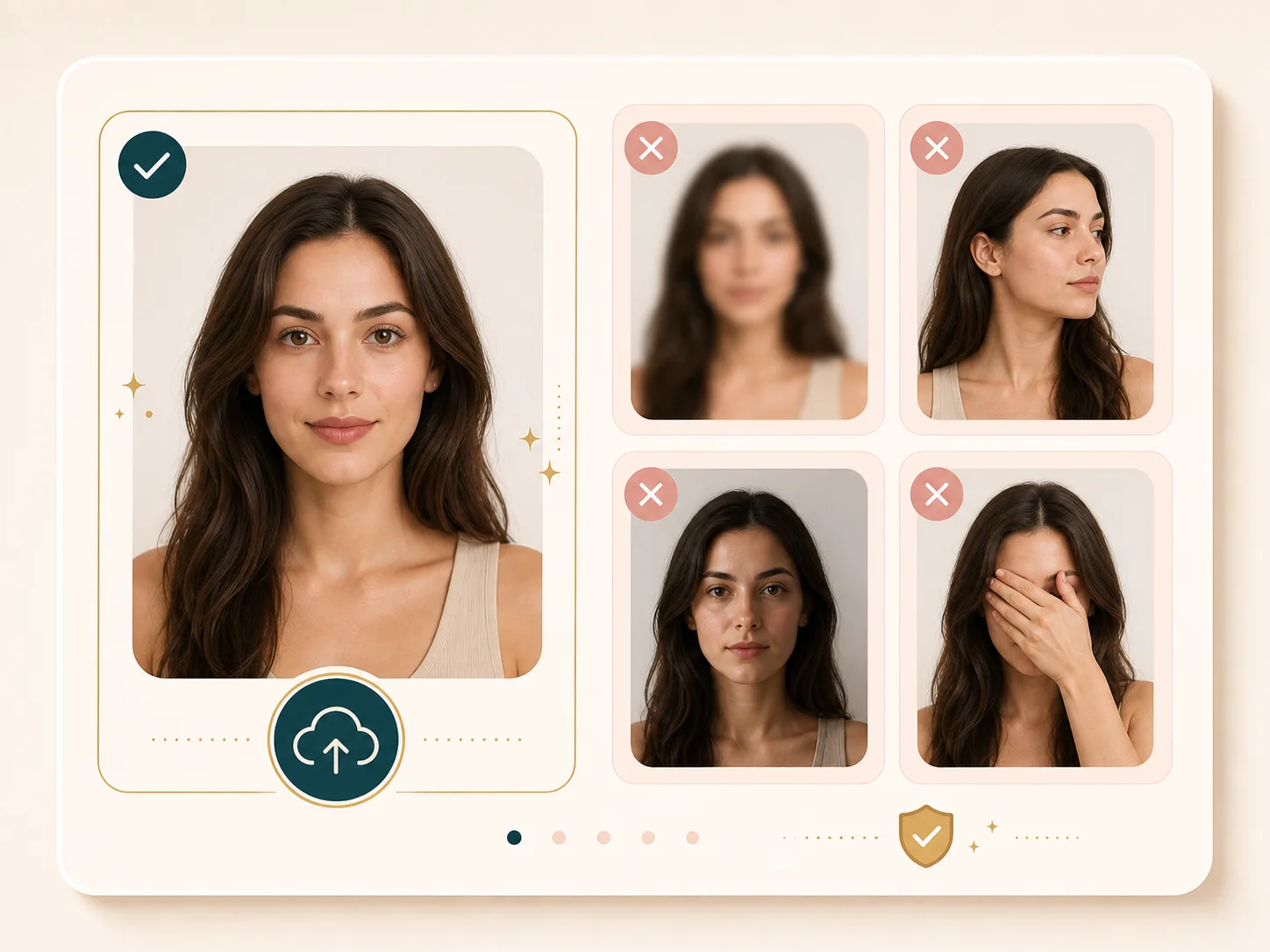
A clear front facing portrait usually gives the most useful result. Heavy blur, extreme side angles, covered faces, harsh shadow, or very small faces can make retouching weaker or cause the service to fail. Start with one visible face when possible.
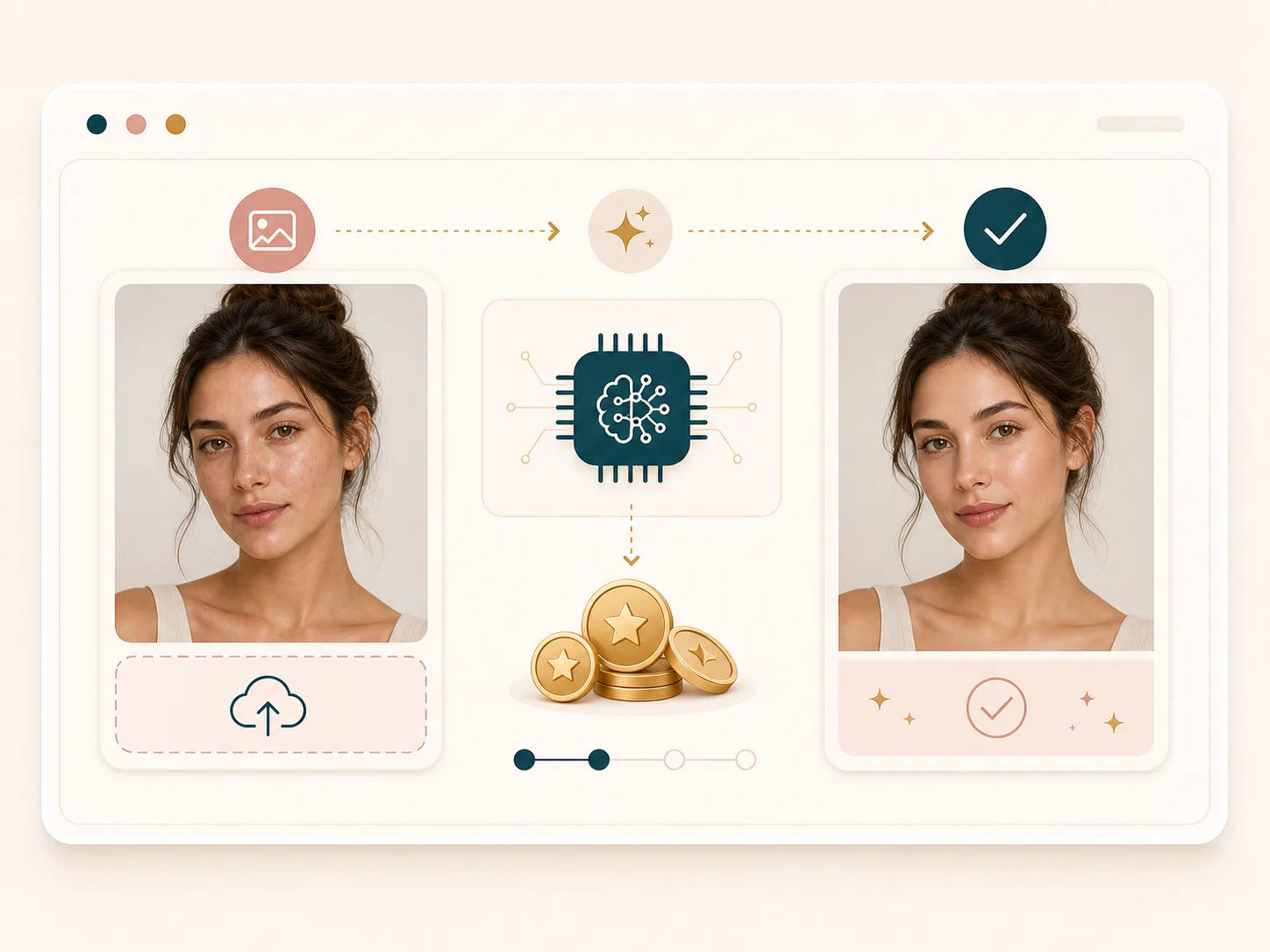
AI Skin Retouching uses the BeautyLove credit system. A successful run costs 20 credits. Failed requests and service errors should not deduct credits, which makes it easier to test a clear portrait before editing more photos.
Comparison table
Searchers often compare one tap retouch tools, beauty filters, and manual editors. The right choice depends on control and time.
| Option | Control | Result focus | Workflow | Best for |
|---|---|---|---|---|
| BeautyLove AI Skin Retouching | Two strength sliders | Skin smoothing, tone brightening, before and after review | Upload, adjust, generate, compare, download | Users who want a quick natural portrait retouch |
| One tap retouch apps | Usually preset based | Fast smoothing or beauty effect, style varies by app | Apply preset and export | Casual edits when detailed control matters less |
| AI beauty filter tools | Often face polish plus style controls | Skin, tone, sharpness, or makeup style changes | Choose controls or looks, then preview | Full portrait polish beyond skin texture |
| Manual photo editors | High control with brushes and masks | Depends on editing skill and time | Brush, mask, layer, export | Precise local edits and professional retouch sessions |
| Desktop retouching software | Advanced tools and plugins | Detailed skin work and batch workflows | Install software, edit manually, export | Studios and retouchers who need deeper control |
Privacy and photo use
BeautyLove sends your uploaded portrait to the selected AI service to create the retouched result. This tool is not processed only on your device.
The latest result data and thumbnail may stay in your browser storage so the result page can show your retouched image.
Upload photos you own or have permission to use. Avoid editing someone else's portrait without consent.
Use the comparison slider to keep the result believable, especially for dating, work, creator, or identity linked photos.
Retouch workflow
AI skin retouching works best when the goal is believable portrait polish, not changing who the person is. Use it after checking photo quality, then move into glow-up, foundation, or profile tools when the next decision is broader than skin texture.
Use AI skin retouching when the portrait is already clear but visible texture, uneven tone, or harsh lighting makes the face look less calm than it did in real life.
The tool does not diagnose acne, irritation, pigmentation, or skin conditions. It creates a beauty-oriented photo edit, so keep expectations practical and visual.
Start with lower smoothing and moderate brightening for LinkedIn, dating, creator, or work photos. Stronger settings are better reserved for stylized social images.
Next tools
Continue only if the photo still needs a broader beauty plan, technical quality check, or color decision.
FAQ
Credits, file rules, retouch strength, natural results, privacy, and common upload issues.
AI skin retouching is an online portrait edit that uses AI to soften visible skin texture and adjust tone. BeautyLove adds sliders so you can choose a subtle or stronger result.
Upload a clear portrait, set the smoothing and brightening sliders, then generate the result. After processing, compare the original and retouched image before downloading.
It can soften the look of small blemishes and uneven tone as part of an overall retouch pass. It does not include a manual spot removal brush.
The result should still look like the same person when you use moderate settings and a clear source photo. Always check the before and after slider before saving.
No. This tool is focused on skin smoothing and tone brightening. It is not designed for face slimming, face morphing, or changing facial structure.
Each successful AI skin retouching run uses 20 credits. Failed requests and service errors should not consume credits.
JPEG, PNG, and BMP are the safest choices for the retouching service. The uploader accepts common image files and has a client side limit around 10 MB.
BeautyLove does not present this page as permanent photo storage. Images are sent for processing, and result data may stay in your browser so the result page can display it.
A single clear face usually works best. Group photos, side profiles, covered faces, very small faces, or heavy blur can make the result weaker or cause processing to fail.
The request can fail if no clear face is detected, the image format is invalid, the service is busy, or the tool is not configured. Try a sharper front facing portrait.
Ready when you are
Upload a clear portrait, keep the first pass subtle, then compare the original and retouched result before you save it.
Loved by 5M+ BeautyLove users for hair, makeup, color, and portrait decisions.